












Master Typology/Rules Library












/Weld
Create new Smart Weld rule
(action) -
1.
Copy and Paste the master Smart
Weld icon Or, drag the Smart Weld
icon to the Process working area
below.
2.
Rename the new Smart Weld rule.
3.
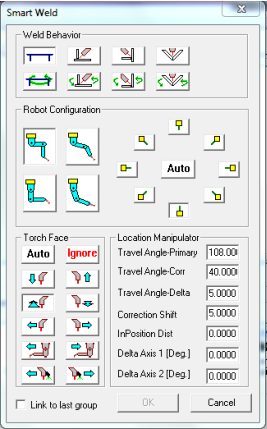
Double click the new created Smart
Weld icon to open properties.
4.
Select Weld Behaviour, Robot
Configuration, Torch Face and set
properties.
5.
Click the OK button.
Create new Weld manipulator
rule (action) -
1.
Copy and Paste the master Weld
Manipulator icon Or, drag the Weld
Manipulator icon to the Process
working area below.
2.
Rename the new Weld manipulator
rule.
3.
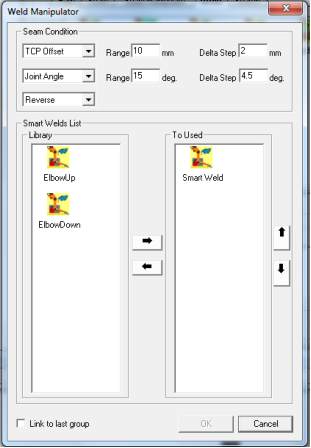
Double click the new created Smart
Weld icon.
4.
Select Smart Weld configurations
from the library and build the Smart
Welds list.
5.
Set seam conditions.
6.
Click the OK button.
Create new predefined
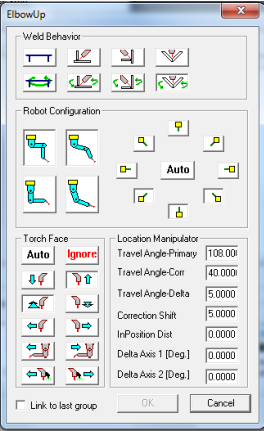
ElbowUp robot configuration
rule (action) -
1.
Copy and Paste the master ElbowUp
icon Or, drag the ElbowUp icon to the
Process working area below.
2.
Rename the new ElbowUp rule.
3.
Double click on the new created
ElbowUp icon.
4.
Change behaviour and parameters.
5.
Click the OK button.
Create new predefined
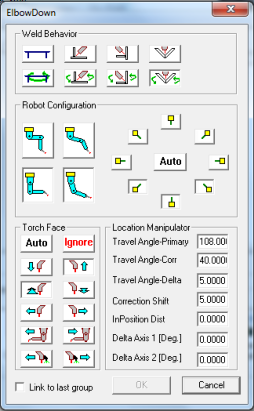
ElbowDown robot
configuration rule (action) -
1.
Copy and Paste the master
ElbowDown icon Or, drag the
ElbowDown icon to the Process
working area below.
2.
Rename the new ElbowDown rule.
3.
Double click on the new created
ElbowDown icon.
4.
Change behaviour and parameters.
5.
Click the OK button.
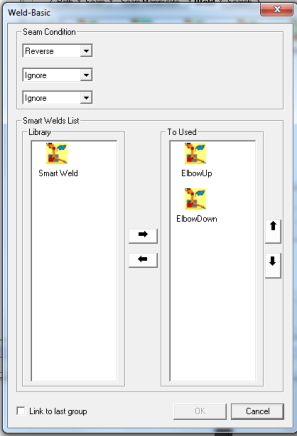
Create new Weld Basic rule
(action) -
1.
Copy and Paste the master Weld
Basic icon Or, drag the Weld basic
icon to the Process working area
below.
2.
Rename the new Weld Basic rule.
3.
Double click on the new created
Weld Basic icon.
4.
Select Smart Weld configurations
from the library and build the Smart
Welds list.
5.
Set seam conditions.
6.
Click the OK button.