













Master Typology/Rules Library










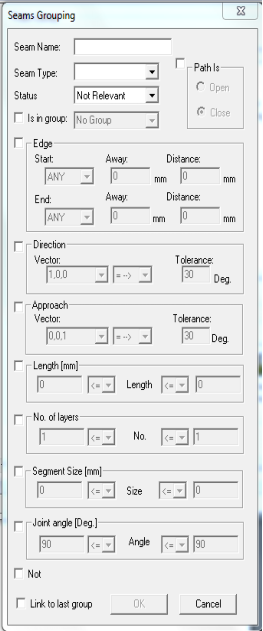
/Seams Grouping
Create new Seams Grouping
rule (Grouping) -
1.
Copy and Paste the master Seams
Grouping icon Or, drag the Seams
Grouping icon to the Process working
area below.
2.
Rename the new Seams Grouping
rule.
3.
Double click the new created Seams
Grouping icon to open properties.
4.
Set the grouping rules.
5.
Click the OK button.
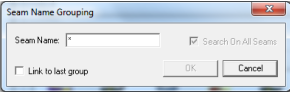
/Seams Name Grouping
Create new Seam Name
Grouping rule (Grouping) -
1.
Copy and Paste the master Seam
Name Grouping icon Or, drag the
Seam Name Grouping icon to the
Process working area below.
2.
Rename the new Seam Name
Grouping rule.
3.
Double click the new created Seam
Name Grouping icon to open
properties.
4.
Name the group.
5.
Click the OK button.
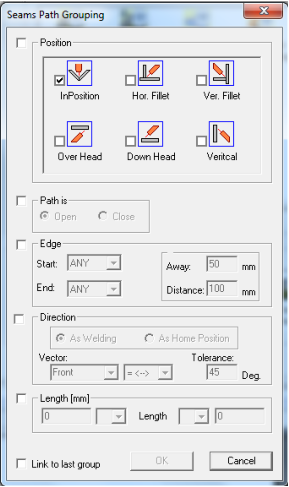
/Seams Path Grouping
Create new Seams Path
Grouping rule (Grouping) -
1.
Copy and Paste the master Seams Path
Grouping icon Or, drag the Seams
Path Grouping icon to the Process
working area below.
2.
Rename the new Seams Path
Grouping rule.
3.
Double click the new created Seams
Path Grouping icon to open
properties.
4.
Select Position and enter properties.
5.
Click the OK button.
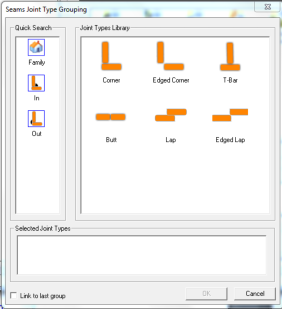
/Seams Joint Type Grouping
Create new Seams Joint Type
Grouping rule (Grouping) -
1.
Copy and Paste the master Seams Joint
Type Grouping icon Or, drag the
Seams Joint Type Grouping icon to the
Process working area below.
2.
Rename the new Seams Joint Type
Grouping rule.
3.
Double click the new created Seams
Joint Type Grouping icon to open
properties.
4.
Drag Joint type icons to the Selected
Joint Types working area below. You
can drag more than one type of joints
to create the group.
5.
Click the OK button.
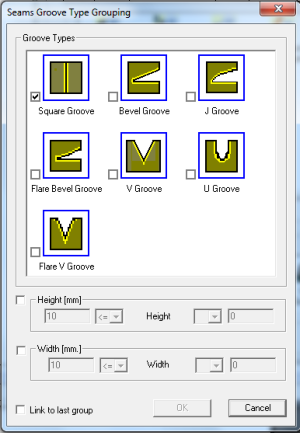
/Seams Groove Type Grouping
Create new Seams Groove
Type Grouping rule
(Grouping) -
1.
Copy and Paste the master Seams
Groove Type Grouping icon Or, drag
the Seams Groove Type Grouping icon
to the Process working area below.
2.
Rename the new Seams Groove Type
Grouping rule.
3.
Double click the new created Seams
Groove Type Grouping icon to open
properties.
4.
Select groove type and enter
properties.
5.
Click the OK button.
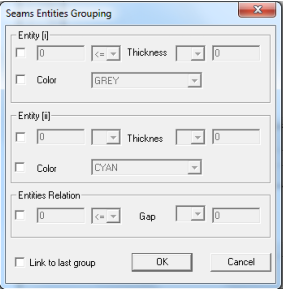
/Seams Entities Grouping
Create new Seams Entities
Grouping rule (Grouping) -
1.
Copy and Paste the master Seams
Entities Grouping icon Or, drag the
Seams Entities Grouping icon to the
Process working area below.
2.
Rename the new Seams Entities
Grouping rule.
3.
Double click the new created Seams
Entities Grouping icon to open
properties.
4.
Enter properties.
5.
Click the OK button.
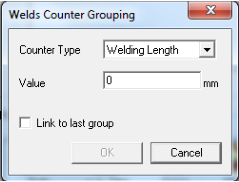
/Seams Weld Counter Grouping
Create new Weld Counter
Grouping rule (Grouping) -
1.
Copy and Paste the master Weld
Counter Grouping icon Or, drag the
Weld Counter Grouping icon to the
Process working area below.
2.
Rename the new Weld Counter
Grouping rule.
3.
Double click the new created Weld
Counter Grouping icon to open
properties.
4.
Select Counter Type and enter Value. .
5.
Click the OK button.
/Smooth Torch
1.
Smooth the robot configuration
transition from one components to the
next one.
2.
Drag icon to the process working area.
