










Master Typology/Rules Library





Pre defined
/Smart Via-Path
Create new Smart Via-Path
rule (Action) -
1.
Copy and Paste the master Smart Via-Path
icon Or, drag the Smart Via-Path icon to the
Process working area below.
2.
Rename the new Smart Via-Path rule.
3.
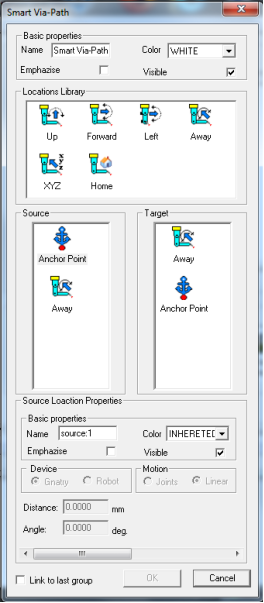
Double click the new created Smart Via-
Path icon to open properties.
4.
Drag the Up icon  into the Source area
and make sure that the distance and angle
are good for the case.
5.
Do the same for the Target area in reverse
order; Up first and Away second.
6.
If needed use the other icons direction to
improve your Via Path.
7.
Select the icons in turns in the Source and
target area and set properties.
8.
Click the OK button.
into the Source area
and make sure that the distance and angle
are good for the case.
5.
Do the same for the Target area in reverse
order; Up first and Away second.
6.
If needed use the other icons direction to
improve your Via Path.
7.
Select the icons in turns in the Source and
target area and set properties.
8.
Click the OK button.
/Auto Smart Via-Path
1.
Based on special event occur at the process,
right before the Auto Smart Via-Path icon,
the following Via-Path at the process will be
executed.
2.
Drag the Auto Smart Via-Path icon to the
Process working area below. i
Activate Via-Path (Action) -
/Via-Path Manipulator
Create new Via-Path
Manipulator rule (Action) -
1.
Copy and Paste the master Via-Path
Manipulator icon Or, drag the Via-
Path Manipulator icon to the Process
working area below.
2.
Rename the new Via-Path
Manipulator rule.
3.
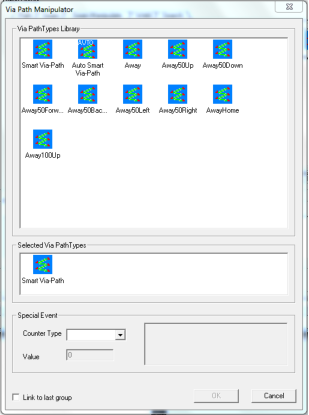
Double click the new created Via-Path
Manipulator icon.
4.
Drag the Via-Path rules into the
Selected Via-Path Types working area
in preferable execution order.
5.
Click the OK button.