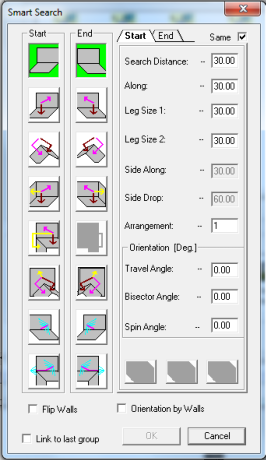
1.Copy and Paste the master Smart Search icon Or, drag the Smart Search icon to the Process working area below. 2.Rename the new Smart Search rule.3.Double click the new created Smart Search icon to open properties.4.Select the desire Start search type icon (none, two or three touches). 5.Change the length and torch orientation parameters on the Start tab.6.Select the desire End search type icon (none, two or three touches). 7.Change the length and torch orientation parameters on the End tab.8.Click the OK button..
Create new Smart Search rule (action) -
1.Copy and Paste the master Predefined Smart Search icon Or, drag the Predefined Smart Search icon to the Process working area below. 2.Rename the new Predefined Smart Search rule.3.Double click the new created Predefined Smart Search icon to open properties.4.Select the desire Start search type icon (none, two or three touches). 5.Change the length and torch orientation parameters on the Start tab.6.Select the desire End search type icon (none, two or three touches). 7.Change the length and torch orientation parameters on the End tab.8.Click the OK button..
Create new Smart Search rule based on predefined rules (action) -